 Bash999
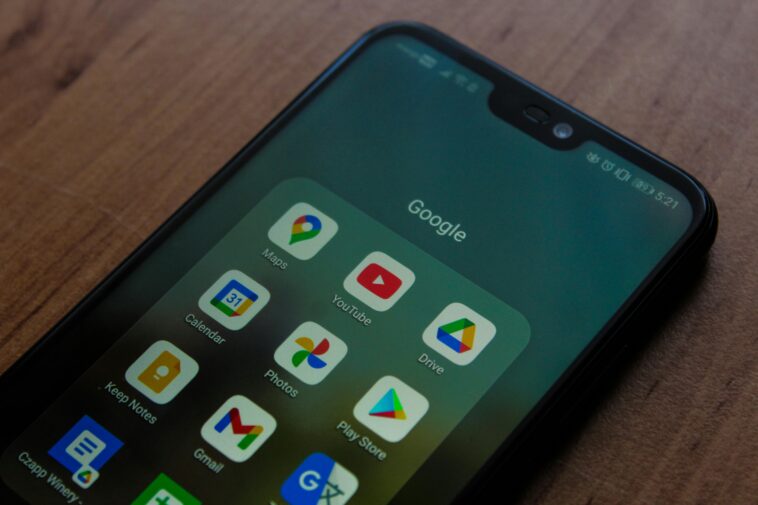
How to Use Google Drive Like a Pro: The Complete Productivity Guide
Most people use Google Drive just to store a few files. But the platform is packed with powerful features that can save you hours every week — once you know where to look.
Whether you’re a student, a freelancer, or part of a large team, Google Drive offers far more than a simple cloud storage locker. From advanced search tricks to real-time collaboration and automation, this guide will walk you through the most practical ways to get serious value from Google Drive — no technical background needed.
1Set Up a Folder Structure That Actually Works
The biggest mistake most people make is dumping everything into a single root folder. Over time, finding anything becomes a frustrating hunt. A clear folder hierarchy is the foundation of everything else.
- 1Start with broad top-level folders: for example, Work, Personal, and Archive.
- 2Inside each, create year-based or project-based subfolders, depending on how you work.
- 3Use consistent naming conventions — start folder names with a number or date prefix if order matters (e.g., 01_Proposals, 02_Contracts).
- 4Right-click any folder and choose Add to Starred for your most-used locations — these appear instantly in the left sidebar.
Pro Tip
Use Google Drive’s color-coding feature. Right-click any folder → Organize → Change color. Assign green to active projects, yellow to pending, and grey to archived work.
2Master Google Drive Search Like a Power User
Google Drive’s search bar is far more powerful than most people realize. Instead of browsing folders manually, you can find almost any file in seconds using advanced search filters.
| What You Want | How to Search |
| Files by type | Type the filename or use the filter dropdown → “Type” |
| Files shared with you | Click the search bar → Shared with me |
| Files modified recently | Filter by Last modified date range |
| Files owned by someone | Use owner:email@example.com in the search bar |
| Files containing a phrase | Use quotation marks: “quarterly report” |
| Files by title keyword | Use title:budget to search filename only |
You can also search inside the content of documents — not just filenames. Type any keyword from inside a PDF or Google Doc and Drive will surface it.
3Share Files and Folders the Right Way
Sharing permissions in Google Drive are flexible, but misusing them can lead to files being accidentally edited or exposed. Here’s how to share correctly every time.
- 1Right-click a file or folder and select Share.
- 2Enter individual email addresses for targeted sharing — this gives you the most control.
- 3Choose the right permission: Viewer (read-only), Commenter (can suggest), or Editor (full access).
- 4For public links, click Change to anyone with the link — but always double-check the permission level before copying.
- 5Set an expiry date on shared links if you’re sharing sensitive files temporarily.
🔒Security reminder: If you’re sharing a folder, every file inside inherits those permissions automatically. Be cautious about placing sensitive documents inside shared folders.
4Use Google Drive Offline Without Missing a Beat
One of Google Drive’s most underused features is offline access. You can work on Docs, Sheets, and Slides even without an internet connection — all changes sync automatically when you reconnect.
- 1Install the Google Docs Offline Chrome extension from the Chrome Web Store.
- 2Open Google Drive settings (the gear icon) and toggle on Offline.
- 3To make a specific file available offline, right-click it → Available offline.
- 4On mobile, open any file and tap the three-dot menu → Make available offline.
This is especially useful for frequent travelers or anyone working in areas with unreliable internet.
5Collaborate Smarter in Real Time
Google Drive is built for collaboration. Whether you’re co-writing a document or reviewing a spreadsheet with a team, these features will make teamwork faster and less chaotic.
💬Commenting
Highlight any text in a Doc and press Ctrl+Alt+M to add a comment. Tag teammates with @name to notify them directly.
📝Suggesting Mode
Switch from “Editing” to “Suggesting” mode in Docs. Your changes appear as suggestions the document owner can accept or reject.
🕐Version History
Go to
File → Version history → See version history
to see every edit ever made — and restore any previous version.
👀
Activity Dashboard
In Docs, go to
Tools → Activity dashboard
to see who viewed your document and when.
6Use Keyboard Shortcuts to Move Faster
Once you get comfortable with a few keyboard shortcuts in Google Drive, you’ll find yourself moving through tasks at a much faster pace.
| Action | Shortcut |
| Create a new folder | Shift + F |
| Create a new Google Doc | Shift + T |
| Create a new Google Sheet | Shift + S |
| Open search | / |
| Star a selected file | S |
| Rename a file | N |
| Move a file | Z |
| Preview a file | Space |
| Share a file | . (period) |
To see the full list at any time, press ? while in Google Drive.
7Integrate Google Drive with Other Tools
Google Drive works seamlessly with dozens of third-party apps, dramatically expanding what you can do without leaving the platform.
- 1Click the + New button → More → Connect more apps to browse the Google Workspace Marketplace.
- 2Connect tools like Slack to get Drive notifications directly in your workspace channels.
- 3Use Google Drive for Desktop to sync specific folders with your computer — changes made locally appear instantly in the cloud.
- 4Use Zapier or Make (formerly Integromat) to automate tasks like saving email attachments directly to specific Drive folders.
Extra Tip
You can open and edit Microsoft Office files (.docx, .xlsx, .pptx) directly in Google Drive without converting them. Just double-click and they open natively in Docs, Sheets, or Slides.
💡Extra Power-User Tips Worth Knowing
Here are a few more features that most casual users never discover — but that can make a real difference in how efficiently you work.
- →Use “Priority” view: Google Drive’s AI suggests files it thinks you’ll need based on your recent activity. Look for the Priority section in the left sidebar.
- →Create Workspaces: Group related files from different folders into a single Workspace (Drive sidebar → Workspaces). No moving required.
- →Scan documents with your phone: In the Google Drive mobile app, tap the + button → Scan. It converts physical documents into searchable PDFs.
- →Convert PDFs to editable Docs: Right-click any PDF in Drive → Open with Google Docs. Drive will extract the text into an editable document automatically.
- →Use “Add a shortcut to Drive”: Instead of duplicating files, right-click a shared file → Organize → Add shortcut. It appears in your folder without using quota.
Final Thoughts
Google Drive is one of the most powerful free productivity tools available — but most of its value is hidden beneath the surface. By setting up a smart folder structure, using advanced search, sharing files securely, and taking advantage of collaboration features, you can transform Drive from a simple storage app into a genuine productivity hub.
Start with one or two of these tips today. Even small changes — like starring your key folders or learning three keyboard shortcuts — add up to meaningful time savings over a week or month.
The best part? Everything covered in this guide works on the free plan. No upgrades required.




GIPHY App Key not set. Please check settings