 Bash999
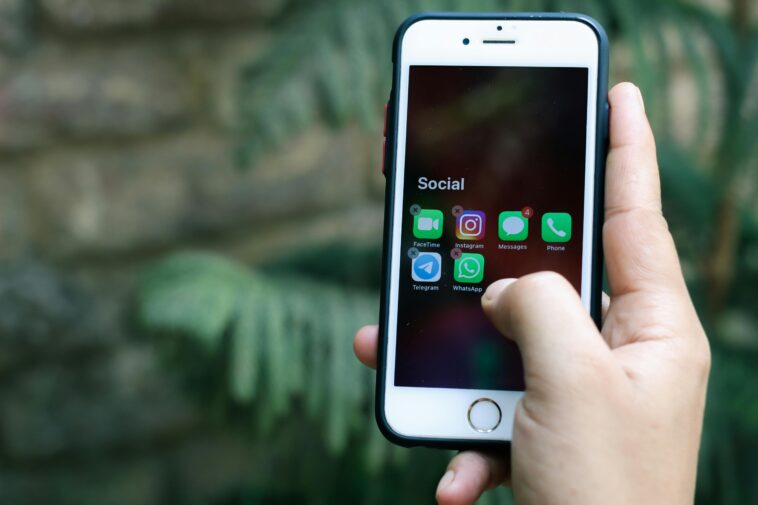
Running low on storage is one of the most frustrating phone problems. You try to take a photo, download an app, or install an update — and suddenly a message pops up: “Storage is almost full.” Sound familiar?
The good news is that clearing space on your phone doesn’t require any technical skills. In most cases, you can recover several gigabytes in under 10 minutes. This guide walks you through the fastest and most effective ways to free up storage on both Android and iPhone — no data loss required.
Step 1: Check What’s Actually Using Your Storage
Before deleting anything, find out where your storage is going. Both Android and iPhone have a built-in storage breakdown tool.
On iPhone: Go to Settings → General → iPhone Storage. You’ll see a color-coded bar showing how much space apps, photos, media, and system files are using.
On Android: Go to Settings → Storage (the exact path may vary slightly by device). You’ll see similar categories broken down by size.
Look at the largest categories first. In most cases, photos and videos, apps, and cached data are the biggest offenders — and they’re the easiest to fix.
Step 2: Delete or Offload Apps You Don’t Use
Apps you haven’t opened in months still take up space. Go through your app list and ask yourself: “Have I used this in the last 30 days?” If the answer is no, it’s a candidate for removal.
On iPhone, there’s a smart option called Offload App. This removes the app itself but keeps its data, so you can reinstall it later without losing your progress or settings. To enable this automatically: go to Settings → App Store and turn on Offload Unused Apps.
On Android, press and hold any app icon, then tap Uninstall. You can also go to Settings → Apps to see a full list sorted by storage size — which makes it easy to spot the biggest space hogs.
Social media apps, streaming apps, and games are usually the largest. Deleting just two or three unused apps can often recover 1–3 GB instantly.
Step 3: Clear App Cache and Temporary Files
Every app stores temporary files — called cache — to load faster. Over time, this cache can quietly grow to hundreds of megabytes or even gigabytes.
On Android, you can clear cache per app by going to Settings → Apps → [App Name] → Storage → Clear Cache. Some Android devices also offer a one-tap option under Settings → Storage → Cached Data.
On iPhone, iOS manages cache automatically, but you can force-clear it by deleting and reinstalling an app. For browsers like Safari, go to Settings → Safari → Clear History and Website Data.
For messaging apps like WhatsApp, Telegram, or Messenger, check the in-app settings — most have a built-in option to delete old media or clear cache without losing your messages.
Step 4: Back Up and Remove Photos and Videos
Photos and videos are almost always the single biggest drain on storage. A single minute of 4K video can take up 400 MB or more.
Here’s the best approach: back up your photos to the cloud, then delete them from your device.
Google Photos (free for Android and iPhone) automatically backs up your photos over Wi-Fi. Once backed up, you can use the “Free up space” feature inside the app to remove local copies — keeping the originals safely stored online.
iCloud Photos works the same way for iPhone users. Go to Settings → [Your Name] → iCloud → Photos and turn on Optimize iPhone Storage. This keeps smaller previews on your device while the full-resolution versions stay in iCloud.
You can also manually go through your camera roll and delete obvious clutter: duplicate shots, blurry photos, screenshots you no longer need, and old videos you’ve already shared or watched.
Step 5: Review Downloaded Music, Podcasts, and Videos
Streaming apps like Spotify, Netflix, YouTube Music, and Apple Podcasts let you download content for offline use — but those downloads pile up fast.
Open each app and look for a Downloads section. Delete any content you’ve already listened to or watched. On Spotify, go to Your Library → Downloads. On Netflix, go to Downloads from the main menu.
A few old podcast episodes or downloaded playlists can easily take up 1–2 GB. This is one of the quickest wins with the least disruption to your daily routine.
Step 6: Empty the Trash and Clean Up Messaging Apps
Many people overlook two easy sources of wasted space.
First, check your Recently Deleted album in your Photos app. When you delete a photo, it doesn’t disappear immediately — it sits in a trash folder for 30 days. Go to Albums → Recently Deleted and tap Delete All to recover that space right away.
Second, messaging apps often store large amounts of media — images, videos, voice messages, and documents sent in chats. Open WhatsApp and go to Settings → Storage and Data → Manage Storage. You’ll see which chats are taking up the most space and can delete media selectively.
The same applies to your email app. Large attachments in old emails can silently eat into your storage.
Extra Tips to Keep Your Phone Storage Healthy Long-Term
Following the steps above will recover space quickly, but staying on top of storage is even better than cleaning it up after the fact. Here are a few habits that help:
Set your camera to record in a slightly lower resolution if you don’t need 4K for everything. The difference in quality is minimal for everyday videos, but the file size difference is significant.
Use streaming instead of downloading whenever you have a reliable internet connection. This alone dramatically reduces how much local storage your music and podcast apps consume.
Turn on automatic photo backups so your camera roll is always safe in the cloud — and you can delete local copies without worry.
Do a quick storage review once a month. It only takes a few minutes and prevents things from getting out of hand.
Conclusion
Running out of phone storage is a common problem, but it’s also a very fixable one. By clearing your app cache, removing unused apps, backing up photos, and cleaning out downloaded media, most people can recover several gigabytes within minutes.
You don’t need to buy a new phone or upgrade your storage plan right away. Start with the steps in this guide, and you’ll likely find your phone running faster and feeling more responsive almost immediately.
If you do find yourself needing more storage in the long run, affordable cloud storage plans from Google One, iCloud+, or similar services can extend your phone’s capacity without any hardware changes.




GIPHY App Key not set. Please check settings